


Gate's Phone, Email, and Gate UID transfers let users send and trade coins peer-to-peer (P2P). It’s a peer-to-peer internal transfer that makes moving assets flexible and easy. Always double-check the coin, amount, and recipient details to avoid losses.
Withdraw via Phone / Email / Gate UID
Step 1: Log in to your Gate account. Go to [Assets] - [Withdraw] - [Phone / Email / Gate UID], then search and select the coin you want to withdraw.
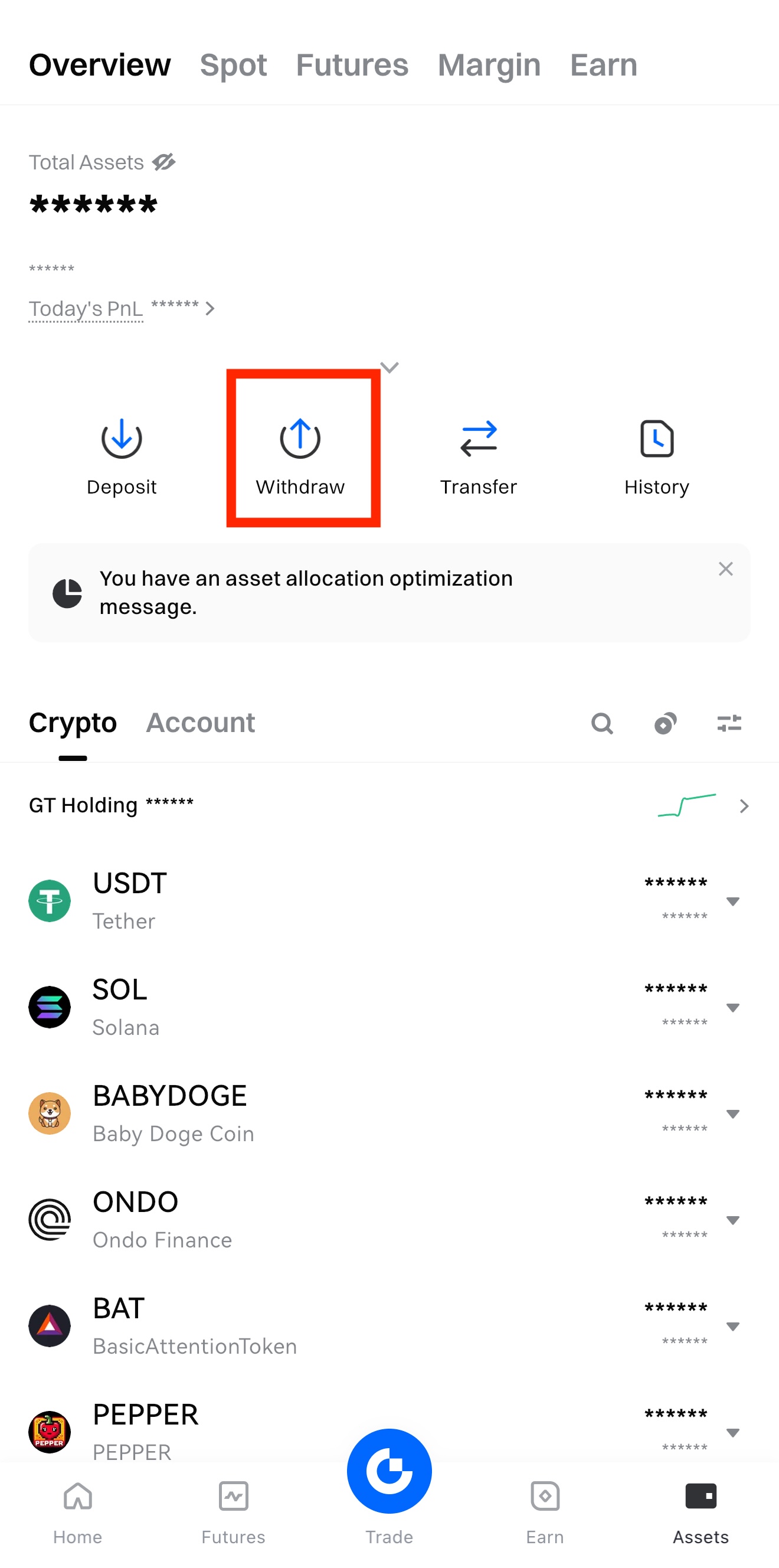
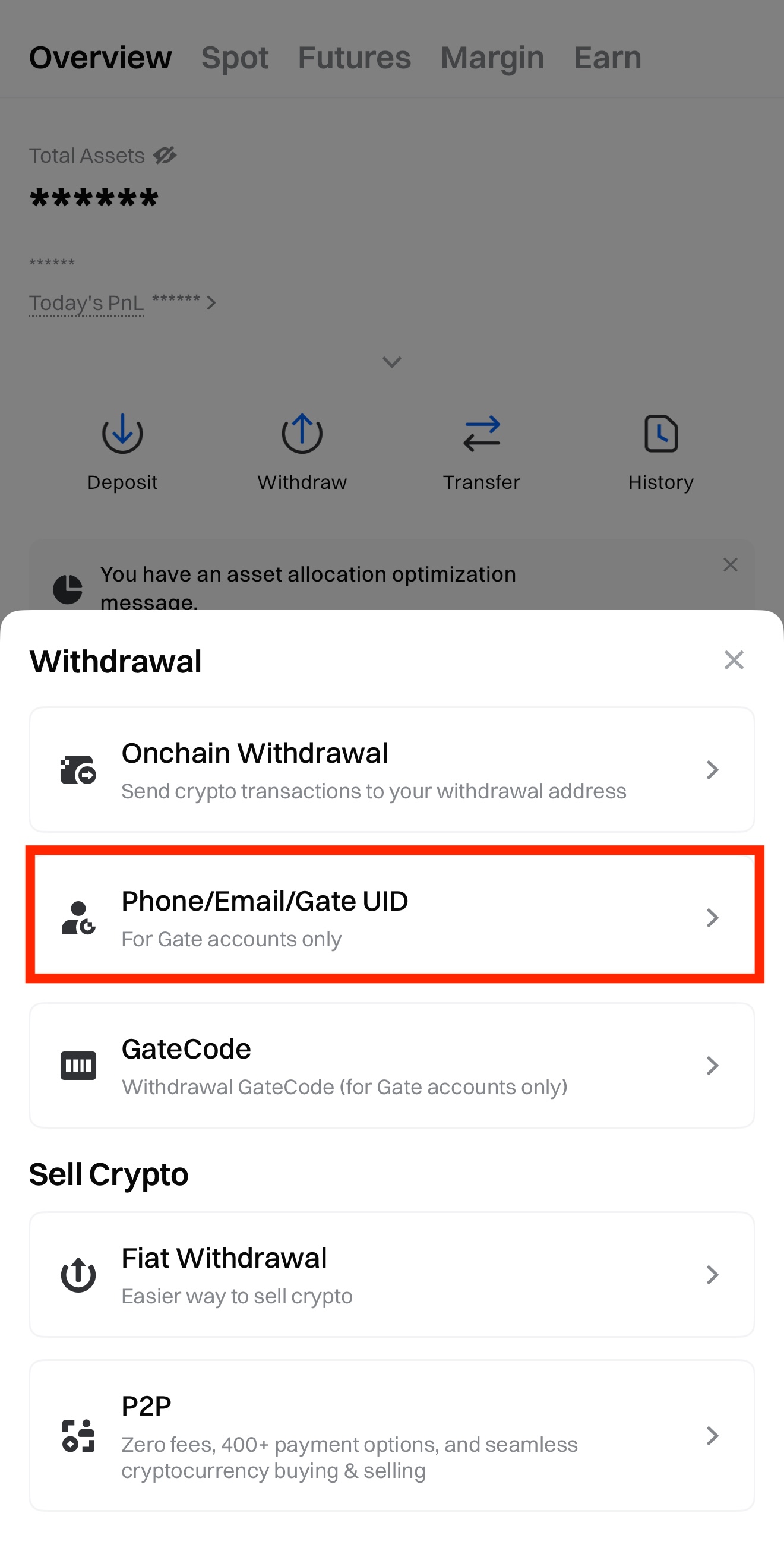
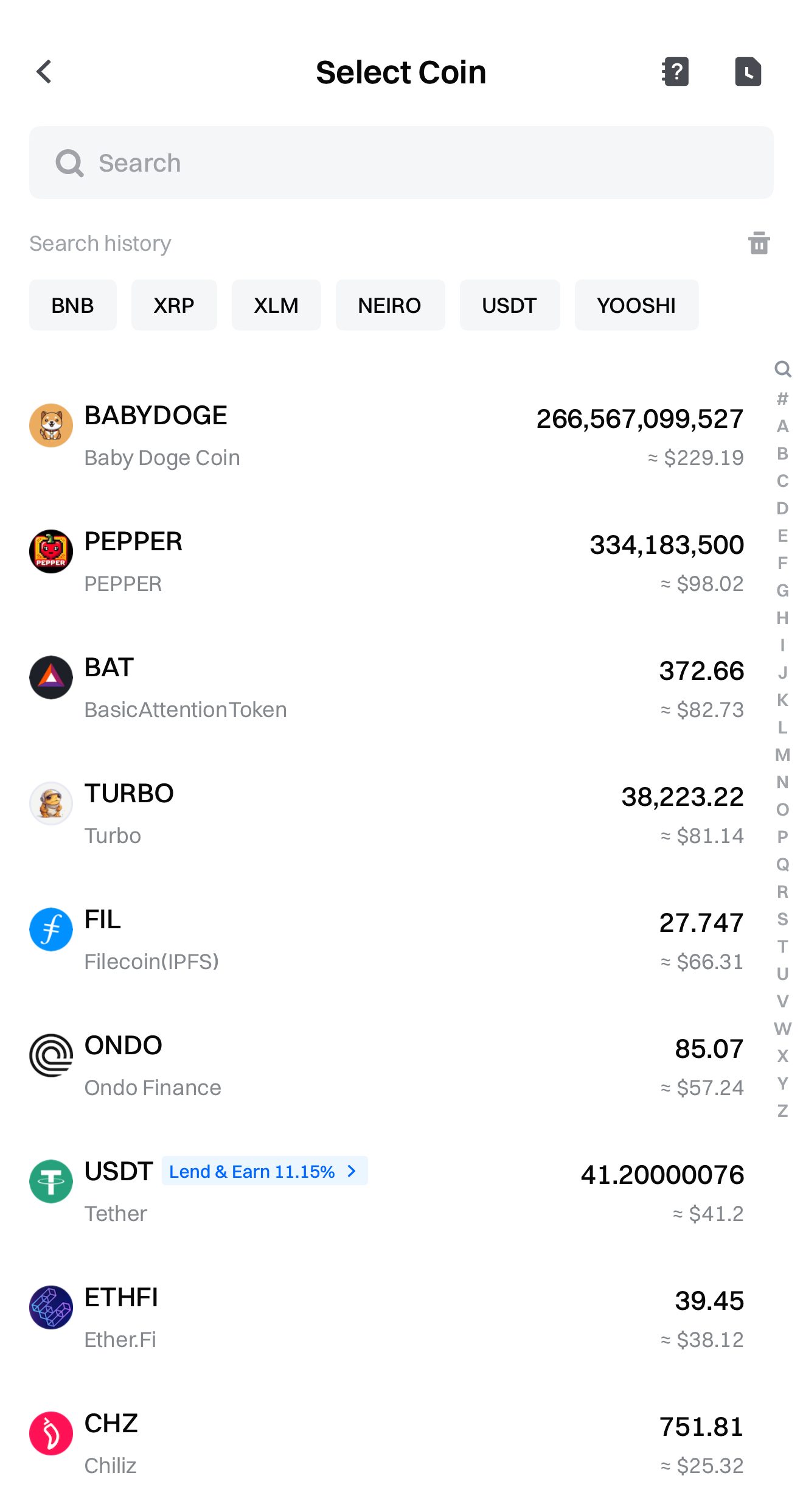
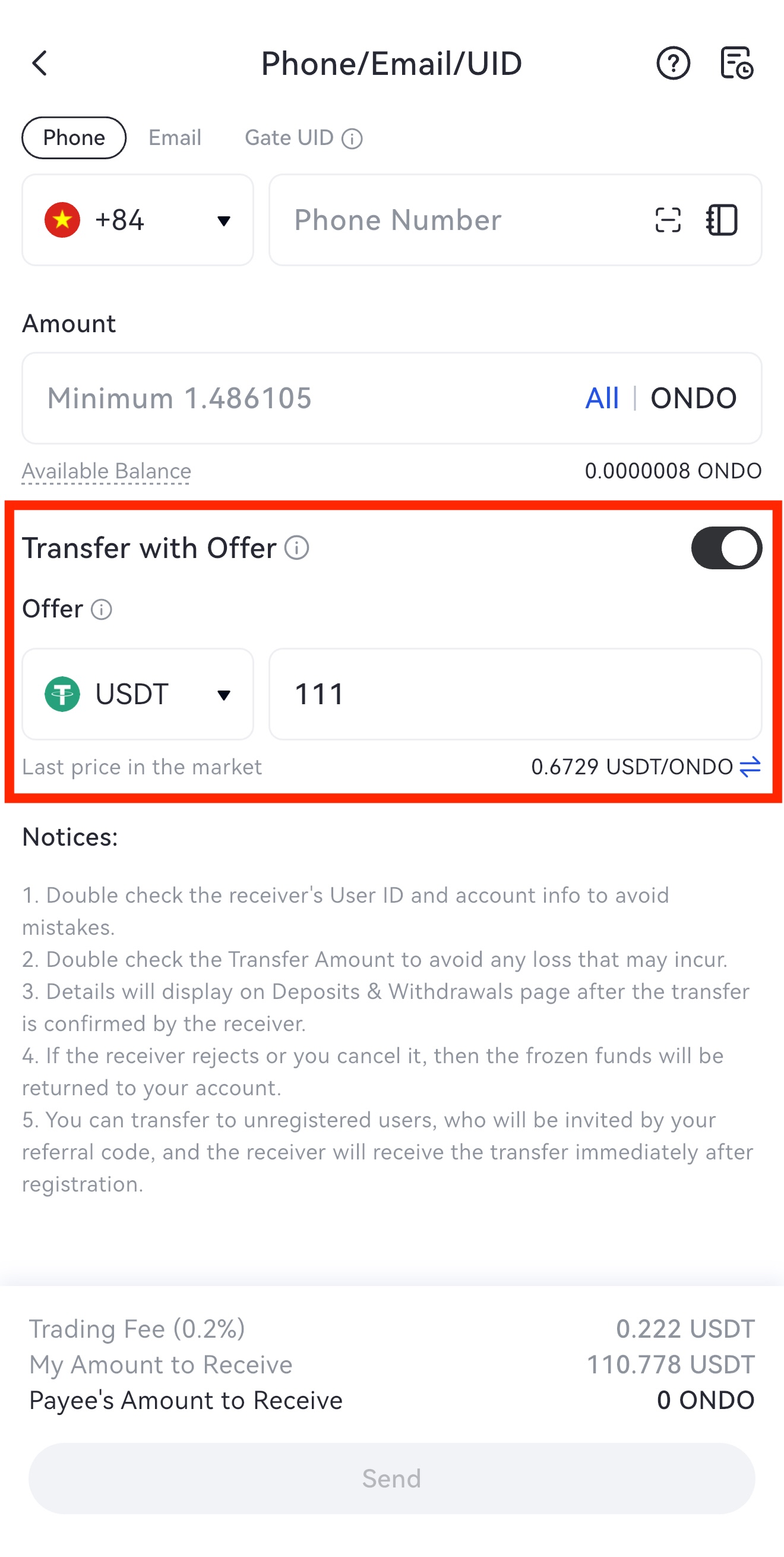
Step 2: On the [Phone / Email / Gate UID] page, enter the coin, the recipient's account (Phone / Email / Gate UID), and the transfer amount. After confirming all details, tap [Send].
You can also send to an unregistered user—Gate will invite them with your referral code, and they can receive the transfer immediately after signing up. Ensure the recipient information is correct.
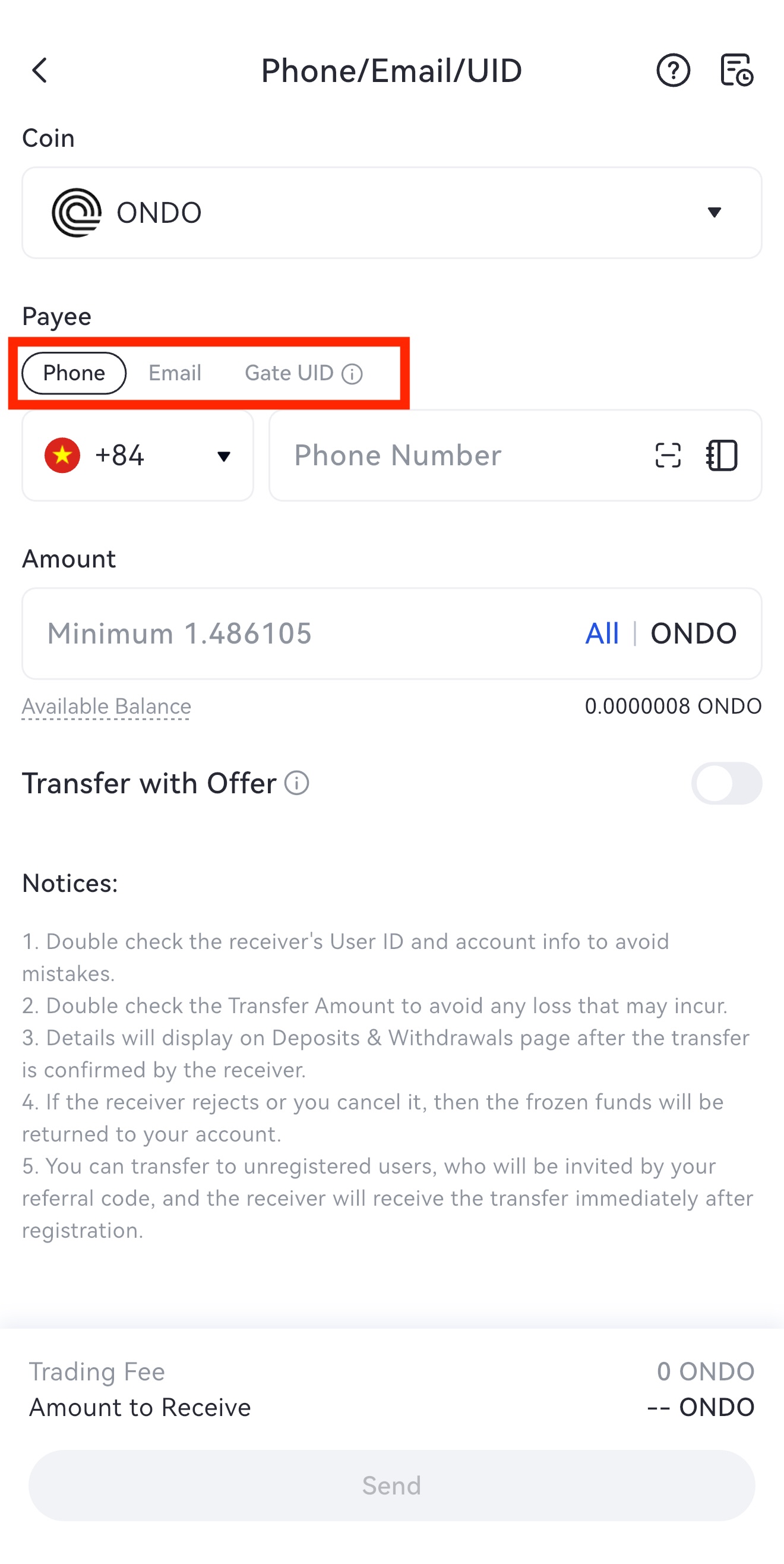
Step 3: If you want to transfer and trade at the same time, enable [Transfer with Offer] on the [Phone / Email / Gate UID] page. The sender specifies the coin amount and a quote, and the recipient pays using the quoted asset.
Note: The minimum amount for [Transfer with Offer] is 1 USDT.
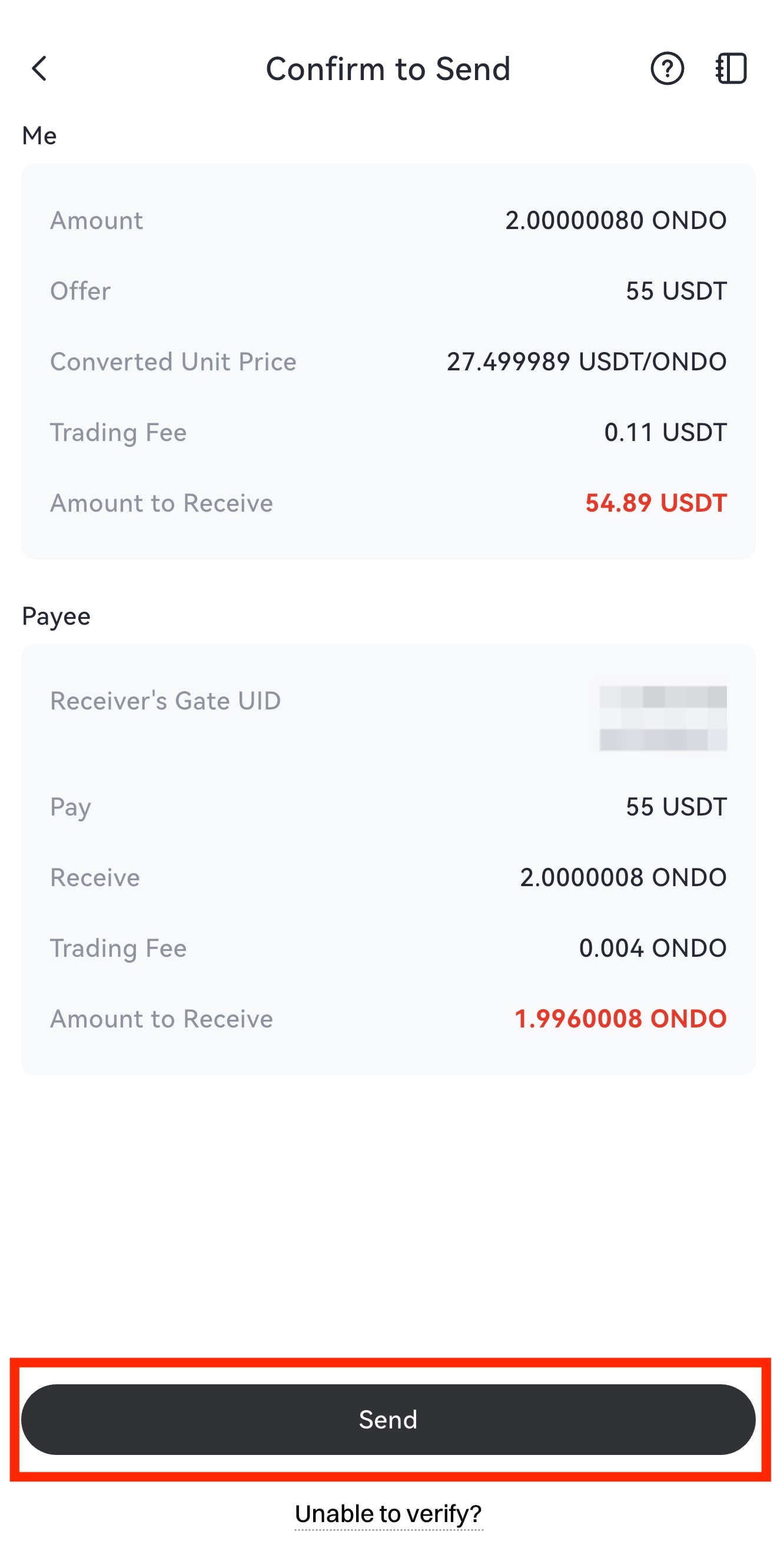
Step 4: After tapping [Send], a confirmation screen will appear. Verify the details, enter your fund password and any required codes, then tap [Send] again to complete the transfer.
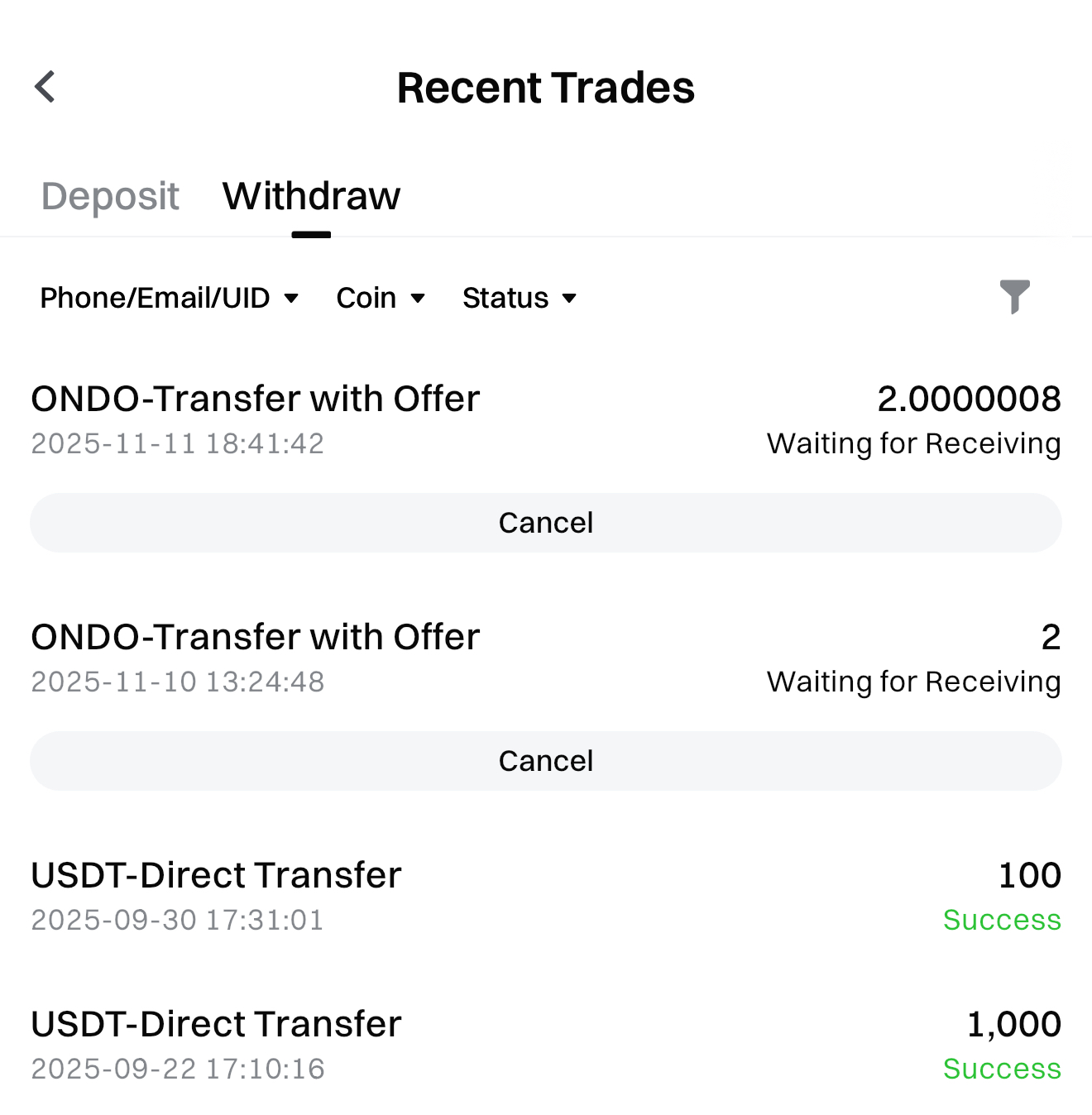
Step 5: Once sent, tap the [Notebook] icon on the top-right of the [Withdraw] page, go to [Recent Trades] - [Withdraw] - [Phone / Email / UID] to view the transfer details.
Notes
- Direct Transfer: If the recipient has completed identity verification, the funds will be credited automatically. If not, the recipient must [Accept] manually; you may also [Cancel] it before they accept.
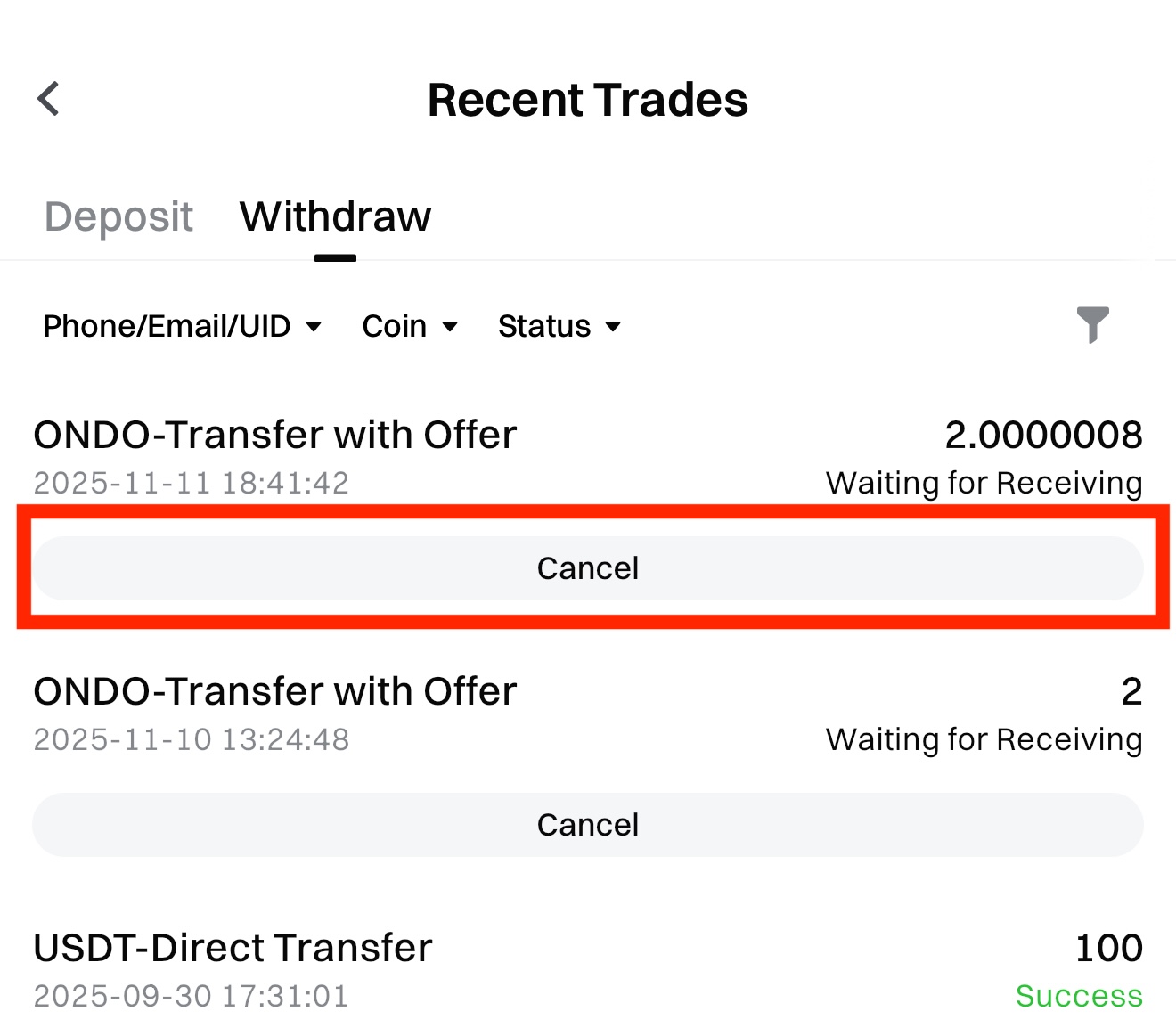
- Direct Transfer / Transfer with Offer: If the other party has not accepted, you can tap [Cancel] under the order to revoke it. After cancellation, the frozen funds will be returned to your account.
Deposit via Phone / Email / Gate UID
Step 1: On the home page, tap [Deposit] - [Phone / Email / UID] to open the [Receive] page. You can keep or share your QR code to receive a transfer.
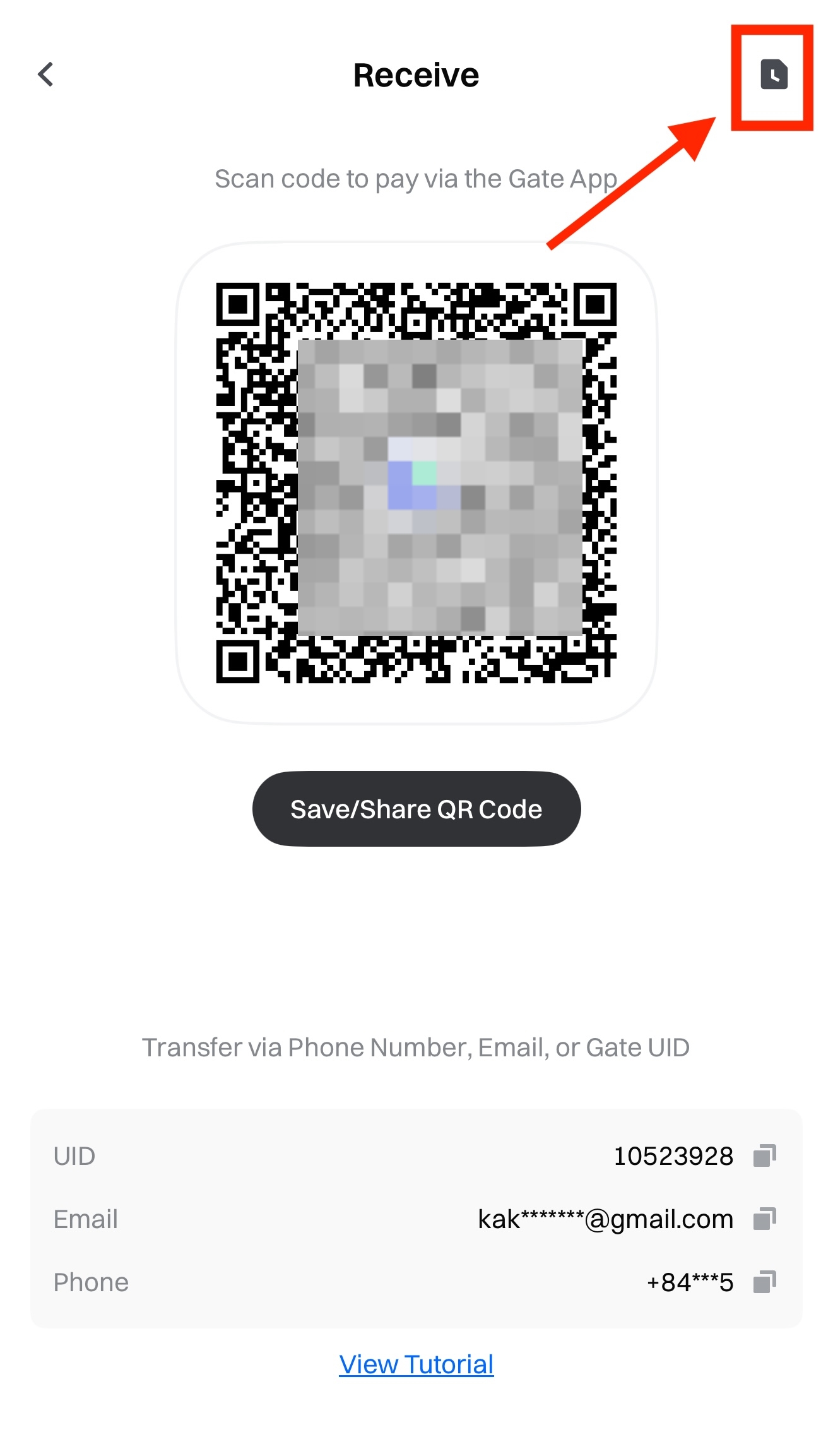
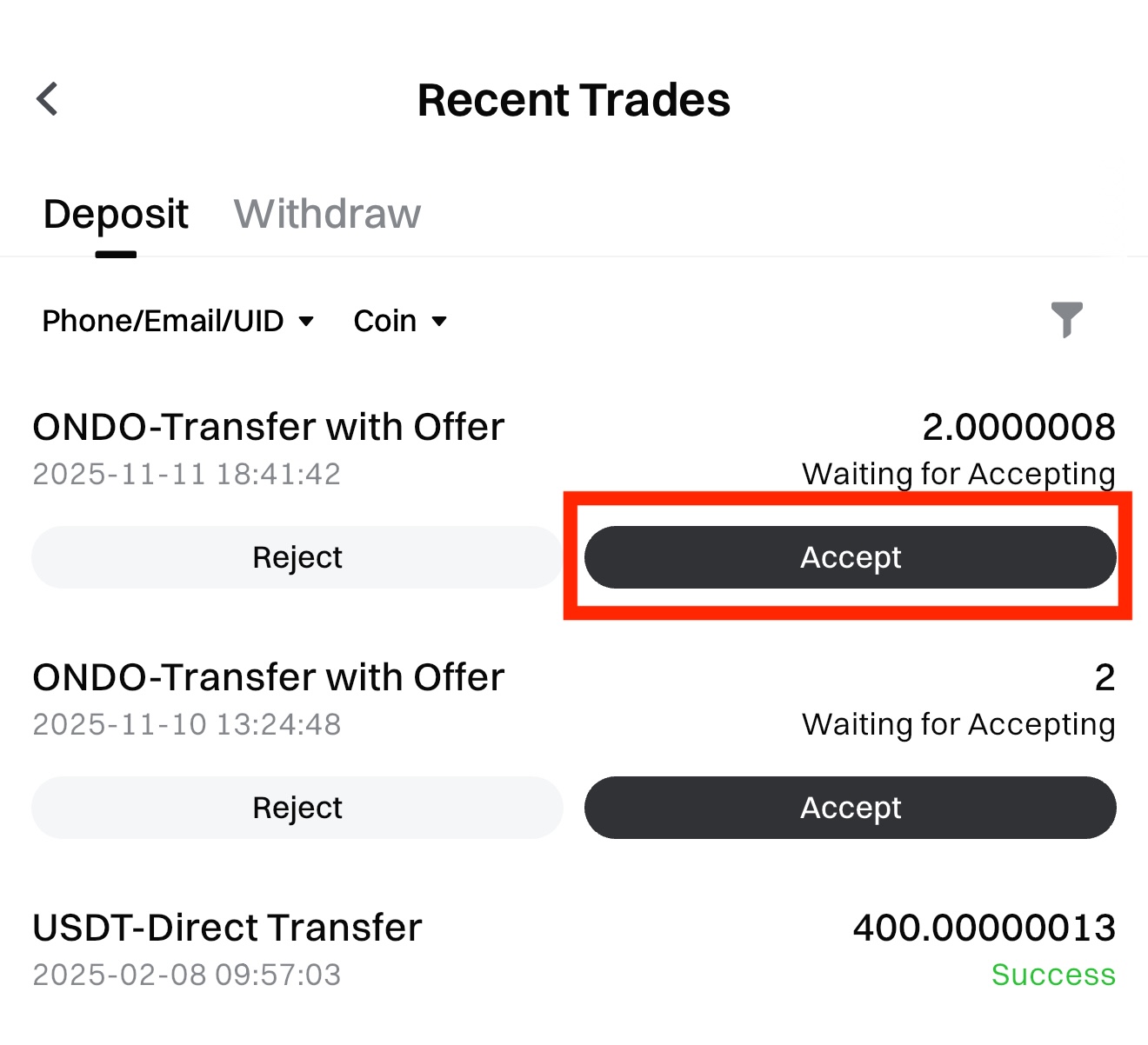
Step 2: Click the [Notebook] icon in the top-right corner, then navigate to [Recent Trades] - [Deposit] - [Phone / Email / UID] to view transfer details. From there, you can select [Accept] or [Reject].
- If the recipient rejects the transfer, the frozen funds will be returned to the sender's account.
- If the recipient accepts the transfer, the funds will be deposited into the recipient's account, and the corresponding quoted amount will be automatically deducted.
Reminders
- Carefully verify the recipient's UID and account to avoid sending funds to the wrong account.
- Double-check the transfer amount to prevent any potential loss.
- After the recipient confirms, you can view the details on the [Recent Trades] page.
- If the recipient rejects the transfer or you cancel it, the frozen funds will be returned to your account.
- You can send funds to unregistered users—Gate will invite them using your referral code, and they can receive the transfer immediately after signing up.
Disclaimer
The content provided herein is for reference and educational purposes only and does not constitute any financial, investment, trading, or legal advice, nor does it constitute an offer or solicitation to buy or sell any digital assets. Gate makes no express or implied representations or warranties regarding the accuracy, completeness, or timeliness of the information contained herein. Product features, interfaces, rules, and fee structures may be updated or adjusted at any time. Please refer to the latest announcements and the actual information displayed on the Gate platform for the most accurate details.
Digital asset investments involve significant risk, and prices may fluctuate substantially. You may lose the entire amount of your investment. Please make decisions cautiously based on your own financial situation and risk tolerance after fully understanding the associated risks. If necessary, you are advised to consult an independent professional financial or legal advisor.
For more information about potential risks, please refer to Gate's Risk Disclosure and User Agreement.
